Acknowledge older commits with .passport_checkpoint
Alice turns on Passport signing for example/tool. She wants readers to
know she stands behind two commits she made before setting it up. She adds
a .passport_checkpoint file to her GitHub repository and approves the
commit with Touch ID.
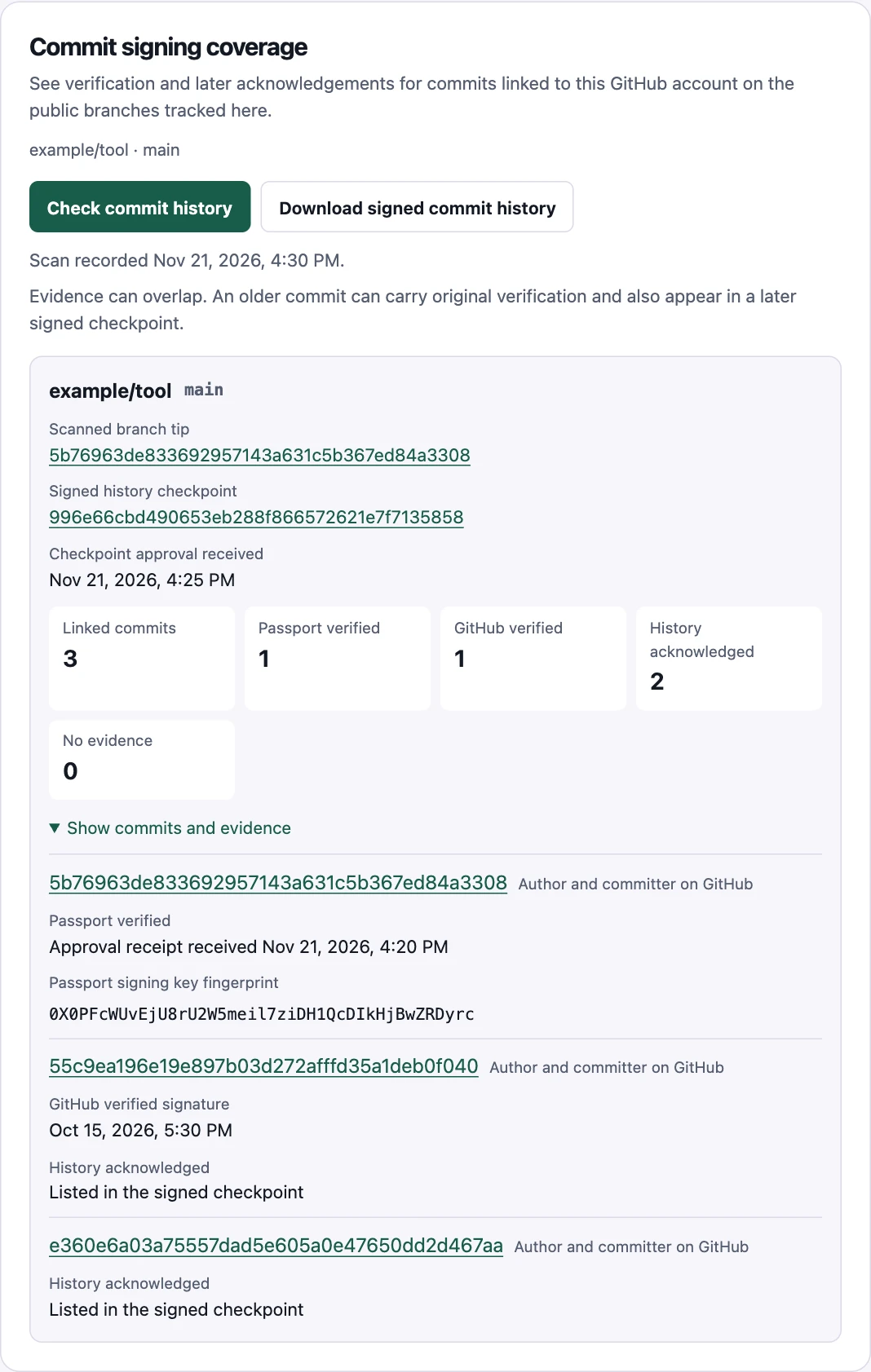
On Alice’s Passport profile, those two commits show History acknowledged. One also keeps its GitHub verified label. Her newer, Passport-signed commit shows Passport verified.
1. Choose the older commits
On your Mac, open a clone of your public GitHub repository. You’ll need Passport Git signing set up with your hardware key and a public Passport profile tracking this branch. See Hardware keys and the maintainer profile setup. Follow Sign GitHub commits with Passport to set up signing in this clone.
Switch to the branch you want to cover and review its recent history:
git switch main
git log --oneline -12
5b76963 Publish release notes
55c9ea1 Fix the parser
e360e6a Add a quickstart
Alice picks Fix the parser and Add a quickstart. Replace her commit IDs with the ones you reviewed:
git show 55c9ea1
git show e360e6a
git rev-parse 55c9ea1 e360e6a > /tmp/reviewed-commits.txt
2. Prepare and sign the file
From the repository you’re reviewing, run the helper from your Device Passport checkout. Replace the paths and repository name as needed.
../laissez/scripts/passport-checkpoint \
  example/tool main /tmp/reviewed-commits.txt
The helper writes this file at the root of the repository:
{
  "version": 1,
  "repository": "example/tool",
  "branch": "main",
  "tip": "5b76963de833692957143a631c5b367ed84a3308",
  "commits": [
    "55c9ea196e19e897b03d272afffd35a1deb0f040",
    "e360e6a03a75557dad5e605a0e47650dd2d467aa"
  ]
}
Here, tip is the full ID of Publish release notes, where Alice started
her review. The two entries in commits are the only commits she’s
acknowledging.
Review the file and run the signing command printed by the helper. It uses
the same git commit -S flow as a regular signed Git commit, with the
subject Acknowledge Passport history and a line that identifies the exact
file contents. Keep your checkout at the same commit until you sign. In
Passport’s Sign commit window, check the subject and approve with Touch ID.
GitHub’s guide to signing commits
3. Push the signed commit and check the profile
You can publish the checkpoint on a branch in the same public repository.
For a first checkpoint, Alice uses a new branch so she can leave main
where it is:
git push origin HEAD:refs/heads/passport-checkpoint
git rev-parse HEAD
Give the full ID printed by git rev-parse HEAD to whoever runs your
Passport verifier. They set it as checkpoint_commit for the tracked
branch. This is the ID of Acknowledge Passport history, which comes after
the tip recorded inside the file. Keep that signed commit intact when you
push it. Squashing or rebasing creates a different commit.
Verifier setup
Open your public profile, choose Check commit history, then open
Show commits and evidence under the branch. The screenshot above shows
what a successful check looks like with example data. Passport checks up to
500 commits per tracked branch and marks a scan as partial when it reaches
that limit. The checkpoint’s tip and the acknowledged commits must be
visible in the scan.
Read the labels
| On the profile | What you can tell |
|---|---|
| Passport verified | Passport checked the original commit signature and found a matching approval record. |
| GitHub verified | GitHub verified a signature on the original commit. |
| History acknowledged | A maintainer approved this exact commit as part of a later signed checkpoint. |
A commit can carry more than one label. A checkpoint leaves the original commit and its signing evidence as they were. GitHub’s verification records